Dungeon Master Manual
Complete guide to running and managing roleplay sessions from the DM interface.
Getting Started
Dashboard
The Dashboard is your home base. It shows:
- Active/Suspended Sessions — how many sessions are running or paused
- Character Sheets — total character templates in your library
- System-Wide Usage — aggregate token counts, costs, images generated, and last activity across all sessions
- Per-Session Cost Breakdown — table showing tokens and cost for each session
- Recent Sessions — quick-access cards for your most recent sessions with Open/Config buttons
Creating a Session
- Click + New Session from the Dashboard or Sessions tab.
- Optionally Load Scenario to pre-fill settings from a saved template.
- Enter a Session Name (required) and optional description.
- Set the Starting Location name and description.
- Add characters using the inline character gallery:
- Browse your character library in Grid (portrait tiles) or List (compact rows) view using the toggle buttons.
- Click a character card to select/deselect them. Selected characters show a blue highlight.
- Each character displays a Disposition Badge (red-to-green, Dangerous to Savior) on their portrait.
- Choose for Me — AI selects a complementary cast based on the scenario.
- Generate for Session — create new characters on the fly.
- Custom Generate — generate characters with custom guidance.
- Selected characters appear in an Order Panel below the gallery with:
- Character thumbnail and name
- Up/Down arrows to reorder turn sequence
- Active/Reserved dropdown — Reserved characters don't take turns initially but can be activated later or by trigger conditions
- Trigger Notes — optional notes describing when a Reserved character should become Active (e.g., "Joins when the group enters the tavern")
- Remove button to deselect
- Click Save to create the session.
Character Library
Creating Characters
Click + New Character in the Characters tab. Fill in:
| Field | Description |
|---|---|
| Name | Character's full name (required) |
| Profession | Role or occupation (autocompletes from known professions) |
| Personality | Core personality traits. Use the Attributes picker for quick selection |
| Visual Description | Physical appearance for narration and image generation |
| Voice Style | How they speak. Use the Attributes picker for presets |
| Disposition | Slider 1-10: Dangerous → Very Friendly |
| Moral Alignment | Slider 1-10: Evil → Good |
| Drives | Core motivations (one per line) |
| Goals | Current objectives (one per line) |
| Fears | Phobias and anxieties |
| Taboos | Things the character will never do |
| Secrets | Hidden information only the DM knows |
Character Images
Each character can have multiple profile images. In the character modal:
- Click Gen Image to generate a portrait using AI.
- Select the Image Model (gpt-image-1, dall-e-3, or gemini) and quality level.
- Add a Prompt Adjustment for extra guidance (e.g., "looking sinister, dark lighting").
- Browse multiple images with the ← / → navigation arrows.
- The active image appears as the character's profile throughout the app.
AI Character Generation
Generate entire casts at once:
- Click Generate Characters in the Characters tab.
- Set the count (1-10), provider, and model.
- Optionally configure gender, role, and profession for each slot.
- Add guidance text for overall theme/style.
- Generated characters appear in a preview grid — edit, discard, or keep each one.
Long-running generations show a live Heartbeat mm:ss indicator in the generator modal so you can confirm the request is still in flight.
Discarded characters go to the Discard Bucket where you can revisit or permanently delete them. Deleted characters go to the Recycle Bin for potential recovery.
Filtering & Search
The collapsible filter bar at the top of the Characters tab lets you:
- Search by name, personality, or profession
- Filter by Disposition range (dangerous to friendly)
- Filter by Moral Alignment range (evil to good)
- Filter by Scenario — show only characters belonging to a specific scenario
- Click Reset to clear all filters
Character tiles display a Scenario Count badge showing how many scenarios the character belongs to (excluding test scenarios). A Disposition Badge appears on character portraits in all picker views, using a red-to-green gradient from Dangerous (1) to Savior (10).
Toggle between Detailed and Compact gallery views using the toggle in the filter bar.
Scenario Membership
Characters can be associated with scenarios directly from the character edit modal. The Scenarios section (below Sessions) shows all scenarios the character belongs to as tags.
- Click + Add to open a dropdown of available scenarios (filtered to exclude scenarios the character already belongs to).
- Select a scenario and click Add to associate the character.
- Click the × on a scenario tag to remove the character from that scenario.
Diagnostics
When image generation fails due to content policy restrictions, the system automatically records diagnostic entries and attempts up to 3 retries with progressively altered prompts. Diagnostic entries track:
- The failure source (provider, model)
- Severity level (Warning, Error)
- Detailed error messages and policy rejection reasons
- Retry attempts and their outcomes
When diagnostics exist for a character, a Diagnostics button appears in the character modal footer (between Delete and Export). Click it to view a table of all diagnostic entries with timestamps, sources, severity, and details. Use the Clear button to remove resolved entries.
Diagnostics are also available on scenarios and sessions where applicable.
Scenarios
Creating Scenarios
Scenarios are reusable session templates. Create one from the Scenarios tab or save a running session as a scenario. Scenarios created from story extraction (Media Import) display a 📖 book icon in the gallery to distinguish them from manually-created scenarios.
- Name & Description — use
<char1>,<char2>placeholders for character names - Starting Location — where the story begins
- Initial DM Input — opening narration with character placeholders
- Global Rules — hard constraints the DM must obey
- Character Rules — behavioral guidelines for AI characters
- Required Roles — roles that need to be filled when casting
AI Casting
When creating a session from a scenario:
- The Recommend Cast button analyzes scenario roles and suggests characters from your library.
- Choose for Me auto-selects the best-matching characters.
- Generate for Session creates brand-new characters tailored to the scenario.
Scenario Key Events
Scenarios support deterministic Key Events (for example: blizzard, accident, protest, breakup, transformation). A scenario's Key Events are instantiated into each new session, then evaluated every global turn.
Authoring (Scenario Editor → Key Events tab)
- Add / Edit / Duplicate / Delete events in the scenario template.
- Set Enabled, Priority, Max Fires, and Cooldown Global Turns.
- Choose Visibility:
- Public — summary is available broadly.
- DM-only — shown in DM context only.
- Private (N) — shown only to listed characters.
Typed Trigger Builder
- Global Turn Number (exact, >=, range)
- Global Round Number (exact, >=, range)
- Character Turn Number (character-specific turn count trigger)
- Location Tag (scene tag match)
- Character State Threshold (metric/operator/value)
- Relationship Threshold (trust/respect/fear/hostility operator/value)
- Probability Window (deterministic seeded chance within global-turn range)
Character Turn Trigger Setup
- Select trigger type Character Turn.
- Choose the target character (for example: Alyssa).
- Set operator/value (for example:
== 3means “fire on Alyssa's 3rd Character Turn”). - Use range values for windows (start/end) when needed.
Typed Effects
- Scene Shift (weather/tags/location summary)
- Directive Injection (turn-scoped system directive)
- Activate Reserved Character (optionally queue placement)
- Dynamic State Delta (bounded metric updates)
- Relationship Delta (deterministic relationship model updates)
- Persist World Event (canonical key-event record for replay and stepper)
- Direct Transform (physical/constraint/identity overlay with duration and optional forced reaction)
Session Runtime Controls
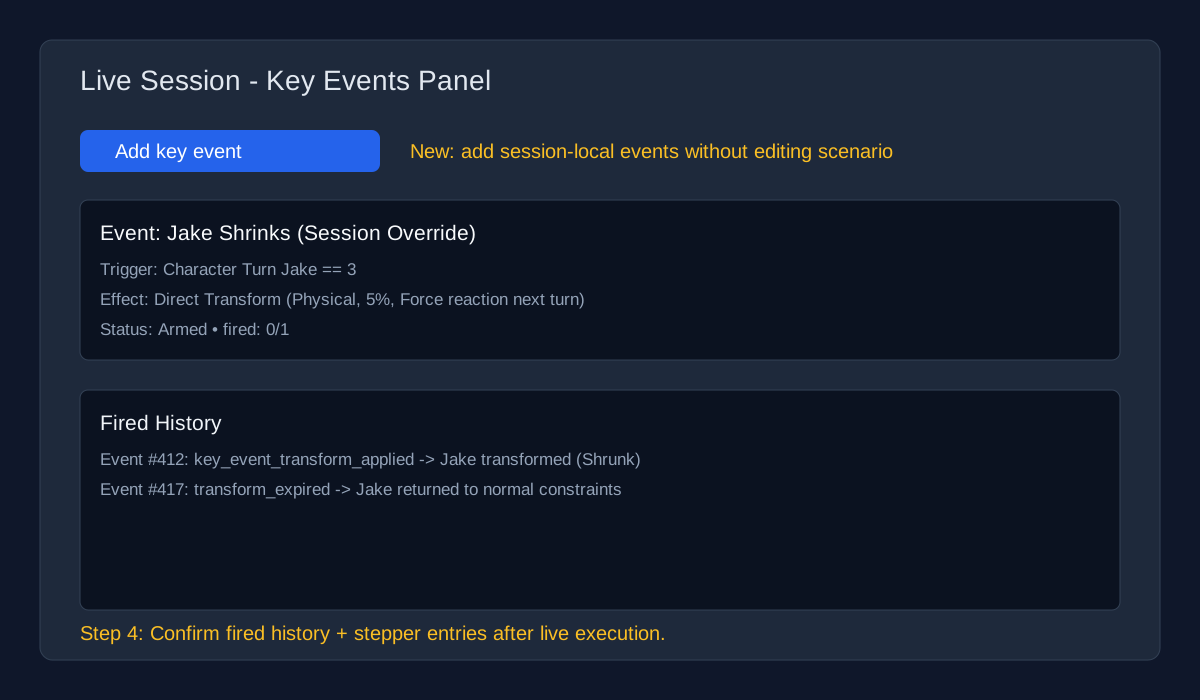
In the live session panel, Key Events can be managed without editing the scenario:
- Enable/Disable event instances
- Fire Now (admin manual trigger)
- Reset (clear fired/cooldown state for testing)
- Edit Overrides (session-local values, does not alter scenario template)
Generate Scenario from Key Event
Use Generate from Key Event... in Scenario Editor to draft a full scenario from a single event idea plus pace target.
Pace Terms
- Global Turn: one actor action.
- Round: one full cycle of eligible actors.
- Character Turn: per-character action count in the session.
Wizard Flow
- Concept: event prompt, category, tone, cast size, reserved toggle.
- Pace: fast/medium/slow preset, optional explicit trigger target.
- Draft: preview location, cast plan, escalation beats, generated key events.
Recipes
- Tornado / Medium: choose Weather + Medium pace. Main event typically targets Round 3 with pre-event directive beats.
- Breakup / Slow: choose Relationship + Slow pace. More escalation beats before confrontation trigger.
- Transformation / Fast: choose Transformation + Fast pace. Draft includes Direct Transform with forced next-turn reaction when feasible.
Troubleshooting
- Event too soon/late: set explicit Global Turn/Round override in wizard step 2.
- Character Turn mismatch: Character Turn trigger binds to first cast member in draft; adjust cast order before saving.
- Need variation: use Reroll to regenerate beats and key-event shape.
Transforms
Direct Transforms are authoritative session state changes. They can alter physical form, apply hard constraints, and queue a forced reaction on the target's next turn.
Glossary
- Transform — a session-scoped overlay on a character (base sheet is unchanged).
- Forced Reaction — highest-priority mandatory reaction injected on the target's next action window.
- Duration Types — Permanent, Turns, Rounds, Until Manual Clear.
- Constraint Correction — invalid actions are rewritten/rerun to stay compliant.
How To: Apply Manual Transform
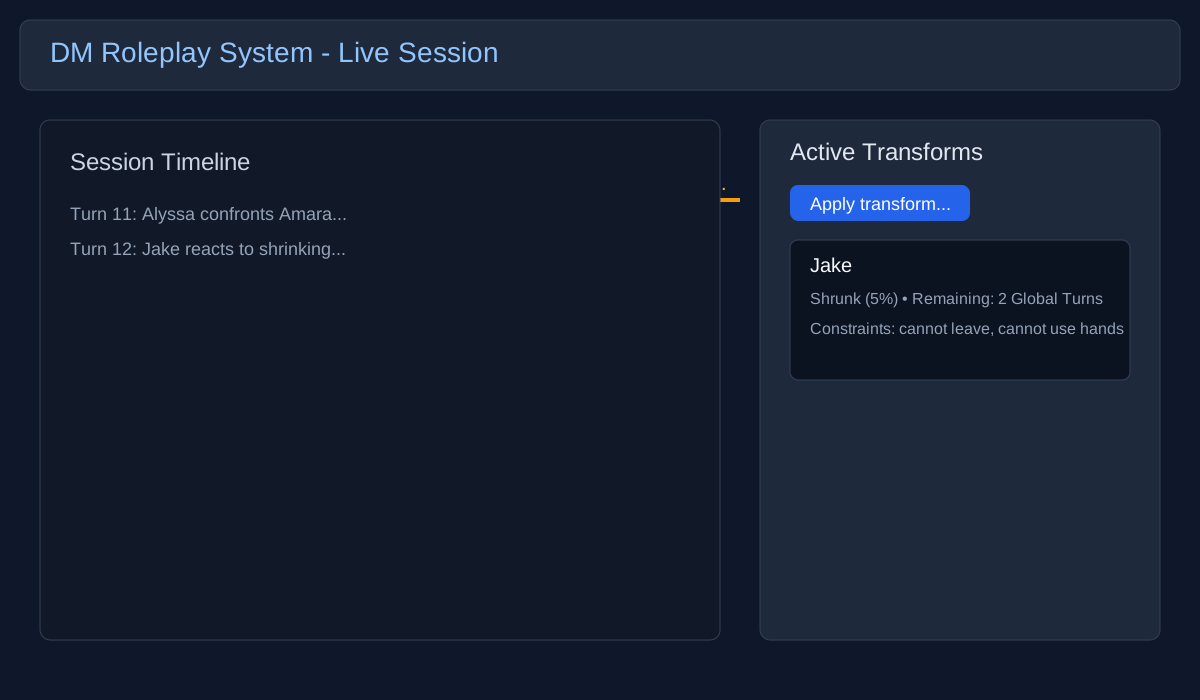
- Open a live session and find Active Transforms in the right sidebar.
- Click Apply transform... (global or per character).
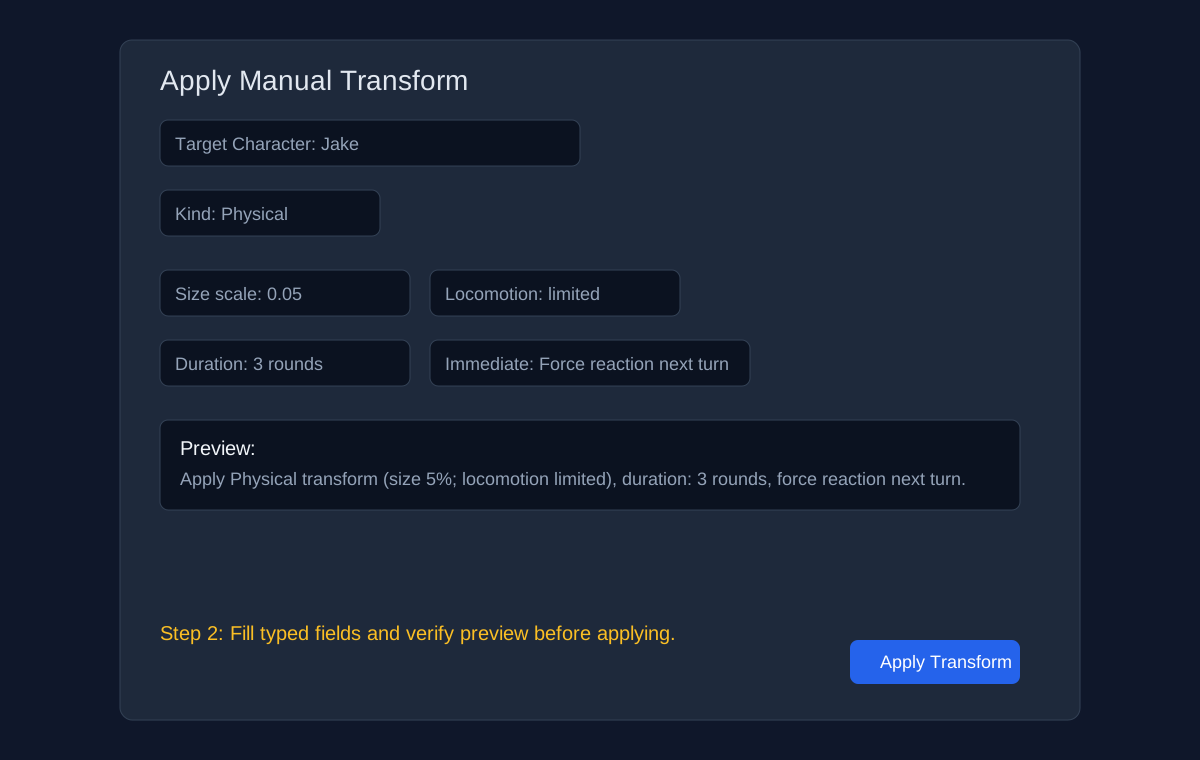
- Set kind + typed fields (for example: Physical, size scale
0.05). - Set duration and immediate mode (usually Force reaction next turn for large physical changes).
- Review the preview sentence and click Apply Transform.
How To: Transform via Key Event
- Scenario Editor → Key Events → add/edit event.
- Create trigger (for example: Character Turn Jake
== 3). - Add effect Direct Transform with typed payload + duration + immediate mode.
- Save scenario and run session. Fired History and Stepper show canonical transform audit and trace.
Transform Troubleshooting
- Transform applied but no immediate emotional reaction: expected when using
ForceReactionNextTurn; response appears on target's next turn. - Action text was rewritten: constraint enforcement corrected a violating action.
- Rewind/replay concern: transform apply is idempotent and should not double-apply on replay.
- Many correction reruns: check session token insights for constraint rerun metrics and tighten constraints.
Tutorial Walkthrough (With Screenshots)
- Open a live session and click Apply transform... in Active Transforms.
- Fill typed fields in the modal and verify the preview summary.
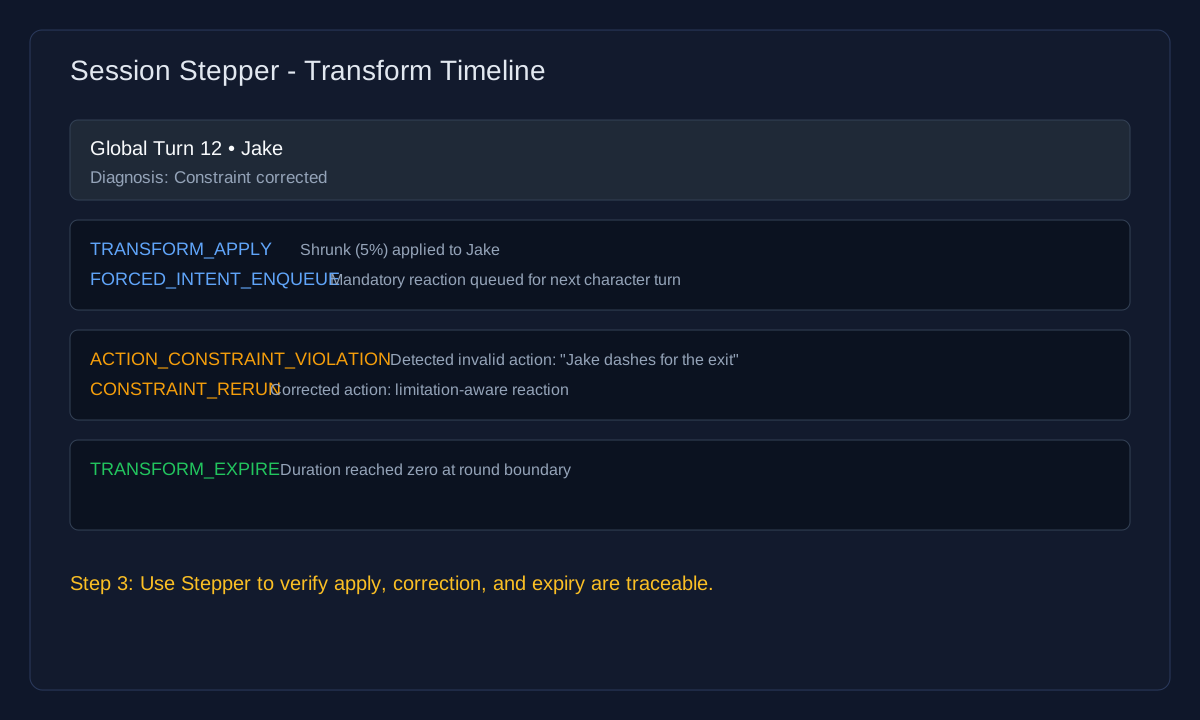
- Run turns and confirm transform lifecycle steps in Stepper.
- Optionally add a session-local key event from live Key Events for repeatable automation.
Running Sessions
Turn Management
Terminology Glossary
- Global Turn — one actor performs one action.
- Character Turn — how many Global Turns a specific character has taken in this session.
- Round — one full cycle where each eligible actor receives one Global Turn.
- Current Round — the active round index shown in UI and diagnostics.
The live session view centers on the Narration Box — a scrolling transcript of the story.
Advancing Turns
- Next Turn — processes the next character's action through the full AI pipeline (intent → resolve → narrate → memories).
- Each turn's narration appears with the character's portrait, name, and role badge.
- Each narration row includes action controls: Visualize this, Rewind Here, Edit, Reroll, and Inspect.
- The thought panel for that turn is clickable; selecting it opens the full internal monologue in a popup.
- If directives were consumed on that turn, a Directives (N) button appears and opens a popup with the applied directives.
Turn Order Sidebar
The right sidebar shows the character turn order. You can:
- Drag to reorder characters
- Skip individual characters (pause icon)
- Promote a character to act next
- Set Turns per Round for each character
- Remove characters from the session
Session Stepper (Diagnostics Matrix)
The Stepper is a turn-by-turn diagnostic matrix opened from live session or replay. It is designed for engine debugging, behavior analysis, and prompt/caching verification.
How to Open
- Use the Stepper button from a session/replay UI.
- You can also open directly at
/session-stepper.html?sessionId={id}.
How to Read It
- Rows are turns. Expand a row to see sub-steps in execution order.
- Columns identify actors and system components.
- Each step shows status (OK, WARN, ERROR, FALLBACK) and detailed artifacts.
Primary Step Types
| Step Type | Meaning |
|---|---|
| RETRIEVAL | Memory/context fetch before model execution. |
| LLM_CALL | Actual provider model call (behavior, narrator, POV, resolver-style steps). |
| PARSE | Structured parsing of model output (intent/action/state fields). |
| STATE_APPLY | Deterministic application of accepted state deltas. |
| PERSIST | Writes to event/story/canon records. |
| KEY_EVENT_EVAL | Evaluates whether configured key events are eligible and conditions are met. |
| KEY_EVENT_FIRE | A key event fired and effects were applied. |
| KEY_EVENT_SUPPRESS | Event did not fire (cooldown, max-fires reached, or condition failure). |
| TRANSFORM_APPLY | A transform entry was applied to a target character. |
| FORCED_INTENT_ENQUEUE | A next-turn forced reaction was queued. |
| ACTION_CONSTRAINT_VIOLATION | Returned action violated active transform constraints. |
| CONSTRAINT_RERUN | Behavioral A/B+ rerun attempt to correct violating action. |
| TRANSFORM_DURATION_ADJUST | Admin adjusted remaining transform duration. |
| TRANSFORM_CLEAR | Admin cleared one/all transforms for a character. |
| TRANSFORM_EXPIRE | Duration reached zero and transform expired automatically. |
Inspector Tabs (Right Panel)
| Tab | What It Represents |
|---|---|
| Request | Exact prompt payload sent for that step (if captured and allowed). |
| Response | Raw model output for that step (if captured and allowed). |
| Parsed Artifacts | Structured extraction (action, class, state delta, retrieval artifacts). |
| Engine Processing | Component/branch handling details and fallback markers. |
| State Diff | Before/after dynamic-state transitions for applied updates. |
| Events Written | Persisted storyline/canon payload and leak-safety indicators. |
| Telemetry | Token counts, cache fields, hash fields, latency/finish metadata. |
Important Interpretation Notes
- Only LLM_CALL steps invoke models. Other steps are deterministic processing between calls.
- Hidden/not captured prompt fields on non-LLM steps are expected; those steps are not prompt-generating calls.
- WARN at turn header can indicate one or more sub-steps used fallback logic even if individual rows show OK after recovery.
- Prompt-cache analysis fields are exposed as
engine_static_hash,session_semi_static_hash,character_semi_static_hash, andcombined_prefix_hash.
DM Controls
Direct World Entry
Text entered here is added verbatim to the world state and broadcast as narration. Use this for environmental descriptions, NPC speech, or scene-setting that doesn't need AI interpretation.
DM LLM Instruction
Guidance for the narrator AI to process on the next turn. The instruction is queued (shown as "Pending") and consumed when the next character acts. Use this to steer the story: "Have the lights go out" or "Introduce a new NPC who is suspicious of the group."
Undo Last Turn
Reverts the story to the state before the last character acted. Rolls back events, canon state, belief states, rolling summary, and memories.
Rewind Here
Each narration entry has a Rewind Here button. Click it to roll the entire story back to that specific point. All subsequent events and memories are removed.
DM Commands
Persistent hidden instructions injected into AI character prompts. Characters follow these commands without them appearing in the narration.
| Type | Effect |
|---|---|
| Directive | Freeform behavioral instruction |
| Mood Shift | Force a character's emotional state |
| Reveal | Make a character reveal specific information |
| Forget | Erase a character's knowledge of a topic |
| Relationship | Set dynamics between characters |
| Pacing | Control scene tempo |
| Escalate | Ramp up tension |
| De-escalate | Dial down intensity |
Each command can target a specific character or all characters, and has a scope: Next Turn (single use), Rest of Round, or Persistent (ongoing until removed).
Edit & Reroll Last Turn
Two surgical tools for correcting or redoing a character's action, appearing on the last narration entry only:
Edit (pencil icon)
- Opens a modal with the current action text pre-filled.
- Modify the text and click Save Edit.
- The narration updates in-place — no re-pipeline.
- Old memories from the event are deleted and new memories are created from the edited text, so characters don't "remember" content that was edited out.
Reroll (dice icon)
- Discards the most recent completed actor turn.
- Rolls back to the snapshot before that completed turn, then re-runs the full pipeline from scratch: new intent → resolve → narrate → memories.
- The result is a completely new action by the same character.
- If the session was waiting on a human player when reroll started, the system returns to that waiting state after reroll so player flow is preserved.
Inspect (magnifier icon)
- Behavioral B+ sessions show decision trace data.
- Other engine modes show the turn inspector debug log.
- The panel opens inline on that narration row and can be toggled closed.
Session Settings
Narrator Mode
| Mode | Description |
|---|---|
| Simulation | Direct, functional narration. Reports what happens concisely. |
| Story | Elaborate prose. Rich atmospheric descriptions, dramatic tension. |
Toggle with the Mode button in the session header.
Turn Advance Mode
| Mode | Description |
|---|---|
| Manual | Click Next Turn for each character individually. |
| Auto (Round) | Automatically advances through AI characters, pausing when a human-controlled character is next. |
Full Auto Mode
Available when Turn Advance is set to Auto. Runs multiple complete rounds without intervention.
- Set the number of Rounds (1-100).
- Click Start to begin auto-play.
- Progress shows as "Round X/Y, Turn Z".
- Click Stop at any time to halt.
DM Interference Level
Slider from 1 (No Interference) to 10 (Creative Injection):
- 1-3 (Low) — The narrator only reports what characters explicitly do. No atmosphere, no new elements.
- 4-7 (Medium) — The narrator adds environment details, NPC reactions, and hints at consequences. Balanced storytelling.
- 8-10 (High) — The narrator has full creative authority. Introduces complications, twists, new NPCs, and dramatic moments.
Response Length
Slider from 1 (Brief) to 10 (Elaborate). Controls how verbose the narrator's output is. Default is 4 (concise).
Reactive Characters
When enabled, characters who are directly interacted with can jump ahead in the turn queue for an immediate response, creating more natural conversational flow.
- Toggle On/Off to enable the feature.
- Reaction Sensitivity slider (1-10) controls how easily characters react:
- 1 = Conservative (only extreme interactions trigger)
- 10 = Aggressive (any mention triggers a reaction)
Interactive Mode
When enabled via the Go Interactive button (in the player view header) or the admin endpoint, players gain the ability to Edit and Reroll the last turn from their player view.
This is a session-level flag. When turned off, the player edit/reroll buttons disappear and the endpoints reject requests.
Stream Narration
Toggle with the Stream button in the session header. When enabled, narration text appears token-by-token with a blinking cursor as the LLM generates it, instead of appearing all at once after generation completes.
This is purely a delivery mechanism change — the same tokens are generated either way, so there is no cost difference. It reduces perceived latency on longer narrations (response length 5+).
If a player joins mid-stream or reconnects, the TurnComplete event still carries the full text as a fallback, so no content is lost.
Turn Timeout
Set how long (in minutes) a human player has to submit their action before the character auto-skips. Set to 0 for no timeout (infinite).
Photostory
Setup
Photostory generates scene images after each complete round of turns.
- Toggle with the Photostory button in the session header.
- Configure Images per Round (1-4).
- Choose Provider: OpenAI ($) or Gemini (free tier, 1,500 images/day).
- Set Resolution: 1024x1024, 1536x1024 (landscape), 1024x1536 (portrait), or Auto.
- Select Style: Auto, Cinematic 3D, Storybook Illustration, AAA Game Cutscene, or Storybook Key Art.
Visualize & Album
- Each narration entry has a Visualize this button that generates an on-demand image for that specific moment.
- The Photo Album button opens a gallery of all generated scene images for the session.
- The Gallery button (top nav) shows all images across all sessions and characters.
Global Settings
Overview
The Settings tab lets you configure default values for every new session. When you create a session, it inherits these global defaults automatically — no need to reconfigure each time. Changes here do not affect existing sessions.
global-defaults.json file. Use Reset to Factory to revert all values to the compiled-in defaults.Session Behavior
| Setting | Description |
|---|---|
| Turn Advance Mode | Manual (click per turn), Human Stop (auto-advance AI turns, pause before humans), or Auto (advance all turns including humans). |
| Narrator Mode | Simulation (direct, functional narration) or Story (elaborate prose). |
| DM Interference Level | 1 (no interference — narrator only describes player actions) to 10 (full creative injection — introduces plot twists, NPCs, obstacles). |
| Response Length Level | 1 (very brief) to 10 (elaborate). Default 4 keeps things concise. |
| Turn Timeout | Seconds before a player's turn auto-expires. 0 = infinite. |
| Disconnected Player Policy | Wait (honor full timeout), Skip (skip immediately), or Short Timeout (30s reduced timer). |
AI Models
Three model roles control which LLM processes each part of the simulation:
| Setting | Controls |
|---|---|
| Session Provider / Model | The default LLM provider and model for the session. Used as a fallback when Narrator or Character models are not explicitly set. |
| Narrator / DM Model | The model that processes all narration and DM duties — scene descriptions, world reactions, plot advancement. The Narrator and DM are the same agent. |
| Character AI Model | The default model for AI character responses — dialogue, actions, and intent. Individual characters can override this via per-character AI config. |
| Narrator Temperature | Creativity level for narration (0 = deterministic, 2 = maximum randomness). Default 0.7. |
| Character Temperature | Creativity level for character responses. Default 0.8. |
Features
| Setting | Description |
|---|---|
| Interactive Mode | When enabled, players can Edit and Reroll the last turn. |
| Stream Narration | Delivers narration tokens in real-time instead of waiting for the full response. |
| Reactive Characters | Characters directly addressed can jump ahead in the turn queue for an immediate response. The Level slider (1–10) controls sensitivity. |
| Photostory | Auto-generates scene images after each round. Configure images per round (1–4), resolution, provider (OpenAI / Gemini), and art style. |
Narrative Rules
| Setting | Description |
|---|---|
| Hard Rules | Absolute constraints the DM/Narrator must obey and enforce on AI characters (e.g., age restrictions, forbidden content). |
| Tone | Emotional and atmospheric direction for both narration and character behavior. |
| Character Rules | Behavioral guidelines injected into character AI prompts. |
These become the default values. When creating a session, the Global Rules field in the session creator can override Hard Rules for that session.
Participation Portal
Overview
The Participation Portal lets you send someone a URL where they complete a guided research flow: personality questionnaire, scenario selection, AI simulation, accuracy review, and data export. Each participant's data runs in an isolated PostgreSQL database — the master database stores only invite metadata and run pointers, never participant data.
The portal is accessed at /portal.html. Administration is done from the Settings tab in this dashboard, under Portal Management.
Creating Invites
Navigate to Settings → Portal Management → Create Invite:
| Field | Description | Default |
|---|---|---|
| Label | A descriptive name for tracking (e.g., "Beta Wave 1") | Required |
| Max Uses | How many times this token can be redeemed | 1 |
| Expires in Days | Days until the invite expires | 7 |
| Scenario ID Hint | Pre-select a specific scenario for the participant | None |
Click Create Invite. The raw token appears in a green box — copy it immediately. The token is shown only once and cannot be recovered (it is stored as a SHA-256 hash).
Send the participant the token along with the portal URL: http://your-server:5000/portal.html
Invite Lifecycle
| Status | Meaning |
|---|---|
| Active | Can be redeemed (within max uses and expiry) |
| Redeemed | All uses consumed |
| Expired | Past the expiration date |
| Revoked | Manually disabled by an admin via the Revoke button |
Revoking an invite prevents new redemptions but does not affect existing runs created from that invite.
Monitoring Runs
The Participation Runs table in Settings shows all runs with their status, creation date, and completion date. Click Refresh to update.
Each row shows a truncated run ID (hover for full ID), the current status, and a Cleanup button for dropping the isolated database.
Run Lifecycle
Each time a participant redeems an invite token, a Participation Run is created that progresses through these statuses:
| Status | What's Happening |
|---|---|
| Created | Token redeemed, run record created in master DB |
| Provisioning | Isolated PostgreSQL database being created and migrated (2–10 seconds) |
| Ready | Database provisioned with scenarios and NPC templates; waiting for participant input |
| QuestionnaireComplete | Participant submitted questionnaire and trait profile was generated |
| Running | AI simulation is executing turns in the background |
| ReviewPending | Simulation finished; waiting for participant's accuracy review |
| Completed | Participant finalized the run and exported their data |
| Failed | An error occurred (check the error message in the run detail) |
| Abandoned | Admin performed cleanup and dropped the isolated database |
Participant Flow
When a participant visits /portal.html and enters their token, they go through 8 guided steps:
- Token Entry — validates the invite, creates a run, provisions the isolated database
- Consent — checkbox consent plus optional email address (email is hashed in master DB, never stored in plain text)
- Questionnaire — Likert-scale personality questionnaire; responses are translated into a 23-trait profile and character sheet
- Scenario Selection — choose from pre-seeded validation scenarios; participant picks their role, NPC templates fill remaining roles
- Simulation — 10-turn AI simulation runs in the background with a progress bar
- Results — view the simulation events as a turn-by-turn replay
- Rating — per-turn accuracy ratings (would-do-same, accuracy slider, mismatch reasons) plus global ratings for emotional realism, boundary realism, social style, and stress response
- Export — download a ZIP bundle or email it, then finalize
If a participant closes the browser and returns, the portal automatically resumes from where they left off (the access token persists in sessionStorage until the run is finalized).
Data Isolation
The portal is designed so that no participant data is stored in the main application database:
| Data | Location |
|---|---|
| Invite tokens (hashed) | Master DB — portal_invites |
| Run metadata (status, IDs, timestamps) | Master DB — participation_runs |
| Participant email (hashed) | Master DB — participation_runs.participant_email_hash |
| Questionnaire responses | Isolated DB only |
| Trait profile / character sheet | Isolated DB only |
| Session, events, narrations | Isolated DB only |
| Compare replay report | Isolated DB only |
| Accuracy reviews | Isolated DB only |
After cleanup, only the master DB rows remain (no participant data).
Cleaning Up Runs
Each participation run creates a separate PostgreSQL database named portal_run_{guid}. These databases consume disk space and should be cleaned up when the data is no longer needed.
Click Cleanup in the Participation Runs table. This will:
- Terminate all active connections to the isolated database
- Drop the database (
DROP DATABASE portal_run_...) - Mark the run as Abandoned
Warning: This permanently destroys all participant data in that run's isolated database. Make sure any needed exports have been downloaded first.
Email Configuration
The portal can email export bundles to participants. Configure SMTP in appsettings.json:
{
  "Portal": {
    "Email": {
      "SmtpHost": "smtp.example.com",
      "SmtpPort": 587,
      "SmtpUsername": "portal@example.com",
      "SmtpPassword": "your-password",
      "FromAddress": "portal@example.com",
      "FromName": "Behavioral Modeling Engine",
      "UseSsl": true
    }
  }
}
If SmtpHost or FromAddress is empty, the email export button on the portal will return an error. The download export button always works regardless of email configuration.
Export Contents
The ZIP bundle generated for each run contains:
| File | Description |
|---|---|
| character-sheet.html | Self-contained HTML with the participant's trait profile, goals, fears, and taboos |
| questionnaire-summary.html | Questionnaire responses and trait translation details |
| compare-report.html | Side-by-side simulation viewer with inlined data |
| replay.html | Full turn-by-turn transcript of events and narrations |
| review-summary.html | Accuracy ratings rendered as a report |
| raw-data.json | Complete JSON export of all session data |
All HTML files are self-contained (no external dependencies) and use a dark theme.
NPC Templates
Each isolated database is pre-seeded with 8 NPC templates used to fill scenario roles alongside the participant:
| Template | Personality Profile |
|---|---|
| Professional Colleague | Moderate disposition, cooperative, mild conflict avoidance |
| Direct Supervisor | Higher authority traits, structured, evaluative |
| Close Friend | High empathy, supportive, lower formality |
| Subordinate | Deferential, cautious, eager to please |
| Authority Figure | High composure, controlled, institutional mindset |
| Neutral Observer | Balanced traits, analytical, detached |
| Antagonist | Higher confrontation, lower agreeableness, strategic |
| Supportive Ally | High loyalty, protective, moderate assertiveness |
Scenarios map their required roles to these templates. Unmatched roles default to Professional Colleague.
Troubleshooting
Run stuck in "Provisioning"
- Check that the PostgreSQL user has
CREATE DATABASEprivileges - Verify the connection string in
appsettings.json - Check application logs for migration errors in the isolated database
Simulation fails immediately
- Ensure LLM API keys are configured in
appsettings.json - Check the run's error message via the run detail or the Runs table
"Email service is not configured"
- Fill in the
Portal.Emailsection inappsettings.jsonwith valid SMTP credentials
Isolated database not cleaned up after failed run
- Use the Cleanup button in the Runs table to manually drop the database
- If the drop fails, check
pg_stat_activityfor lingering connections
Participant can't resume their session
- The access token is stored in
sessionStorage, which is cleared when the browser tab is closed - If lost, the participant needs a new invite token to start a fresh run
Tools
Player Links
Human-controlled characters get unique player links. Each link contains a session ID, character ID, and access token. Share these with players so they can connect via the Player View.
Player links appear in the session's character list and can be copied to clipboard.
Fork & Export
- Fork Session — creates a branch of the story from a snapshot point. The original continues independently.
- Fork now carries the selected snapshot's story/state plus diagnostics, stepper telemetry, and memories up to that point.
- Fork token/cost totals start from zero (historical cloned usage is not billed again).
- Save as Scenario — converts the current session state into a reusable scenario template. You can choose which characters to keep as permanent, convert to ephemeral, or remove.
- Export Story — downloads the session's narration as a readable document.
Replay & Reboot
Available on suspended sessions with turns:
- RePlay — resets the session and replays all turns with a different LLM model. All characters are treated as AI.
- Reboot — same as RePlay but preserves human character control types.
- Both actions create a replay clone session and reprocess from turn 1; they do not modify the original session in place.
Custom Compare Viewer: when a run finishes, the yellow Done playback button restarts local playback from turn 1. It does not trigger new generation.
Token Usage
Click the token counter in the world state card to open the Token Dashboard:
- Total input/output tokens and cost
- Breakdown by model (calls, tokens, cost per model)
- Breakdown by API provider
- Per-call telemetry (hashes, cache fields, and prompt block estimates) via API
Advanced diagnostics endpoint: GET /api/admin/sessions/{sessionId}/token-usage/insights
- Cache hit rate by call type (character/narrator/perspective-convert)
- Cache hit rate by character
- Top volatile user blocks with average and p95 token estimates
Rules & Tone
Access via the session Config button:
- Hard Rules — absolute constraints the DM and AI characters must obey (e.g., age restrictions, forbidden content types).
- Character Rules — behavioral guidelines injected into character AI prompts.
- Tone — emotional and atmospheric direction for the story.